
What this is
This is your end-of-day check-in with Claude. At 6pm, you tell Claude how your day went. It asks you the loan officer end-of-day questions one at a time, then saves your answers so the team can find them later. The whole thing takes about five minutes.
A few things to know before you start:
- Claude is an AI assistant, a lot like ChatGPT — just a different one. You talk to it in plain language: you type, it types back.
- It does not already know your numbers. It only knows what you tell it. So when it asks how many dials you made, it’s asking you, not pulling it from somewhere.
- Nothing gets saved until you say so. You see everything first and approve it. You can’t break anything.
One more thing: this is a first draft we’re building together. We’re improving the system, not testing you — so if anything feels clunky or unclear, tell us. That’s how it gets better.
If you’ve never used Claude before, you’re in the right place. This guide walks you through every step.
Getting set up
Everything here is one-time, and we do all of it together on your kickoff call — so you’re never figuring it out alone. We’ll start with your two accounts and connecting them, then get to know Claude and finish the last couple of settings.
Two tools, one job each
Before the steps, the whole setup is really about two tools — and you’ll only ever touch one of them.

Claude
The assistant you talk to
This is where you do your check-in each evening. You type, it types back. Claude is your whole experience.

Attio
The storage bin
This is where your check-ins get filed so the team can see them. It works quietly in the background — you’ll never have to open it.
Both use the same work email, so everything lines up. The steps below get each one ready — we’ll walk them one at a time.
1. Your Claude account
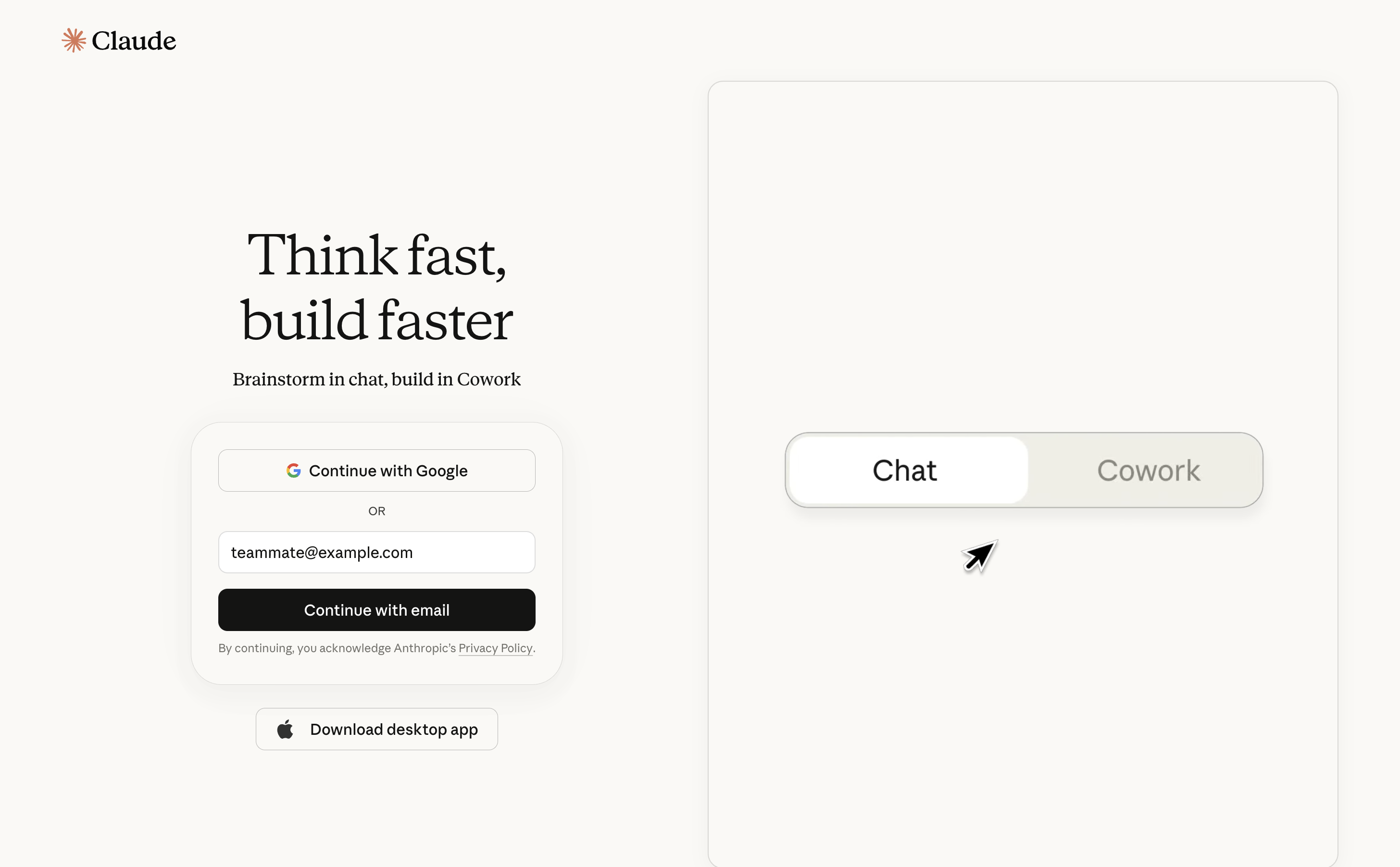
Claude is where you’ll actually do your closeout each evening. You’ll get an invitation email from Anthropic (the company that makes Claude). Open it and click the button to join — this sets up your account.
Continue with email
The link takes you to claude.ai. Choose Continue with email and type your work email. You’ll use this same address for Attio in the next step, so everything lines up.
Click the login link
Claude emails you a secure login link. Open that email, click the link, and you’re in. (Opened it on a different device? It shows a short code to type instead.)
Verify your phone
First time only: Claude asks you to verify your phone number. It’s a normal security step for new accounts and you can’t skip it. Enter your number, wait for the text, type in the code.
There’s no password to remember, and you won’t be asked for a credit card — you’re on the company account, so there’s nothing for you to pay.
Check your spam or junk folder. The login email comes from anthropic.com.
2. Your Attio account
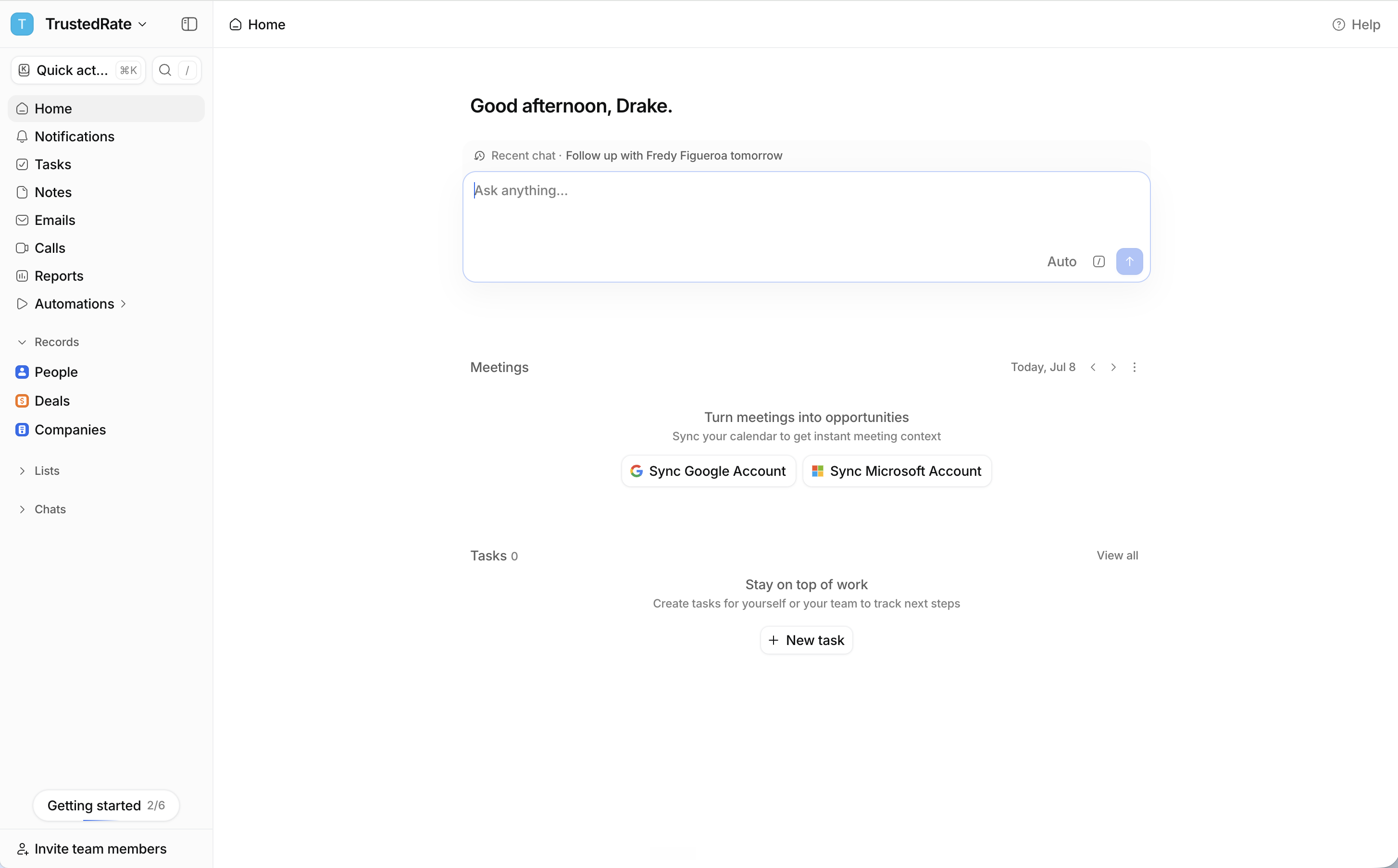
Attio is where TrustedRate keeps its records, and it’s where your end-of-day check-ins get saved so leadership can see them. The good news: you’ll never have to open Attio or learn it. Claude is your whole experience — Attio just works quietly in the background. You only need an account so your check-ins save under your name.
You’ll get an email inviting you to TrustedRate’s Attio workspace.
- Open it and click to join.
- Set up your login — use the same email as your Claude account so everything lines up. Sign in with Google or set a password, your choice.
- That’s it. You don’t need to click around or set anything up inside Attio.
3. Connect Attio to Claude
This links the two, so your closeout can save. We’ll do it with you on the call, and it only happens once.
Open Claude’s connector settings
Find Attio in the list of connectors.
Click Connect
A screen from Attio pops up asking you to allow Claude access.
Pick the TrustedRate workspace and approve
That links your account. Once it’s done, it stays done.
Set the tool permissions
The last thing is telling Claude what it may do in Attio. Set each tool to match the list below — we’ll do this together on the call.
The exact permissions to set
Claude asks how much you want to let it do in Attio. TrustedRate uses one setup for everyone. Match every tool on your screen to this list — it lines up one-for-one with the screenshot. In short: reads stay on, your check-in note saves, and creating or changing records, tasks, or lists is off. Claude still shows you the note and waits for your yes in the chat before it saves.
Read-only tools
Write & delete tools
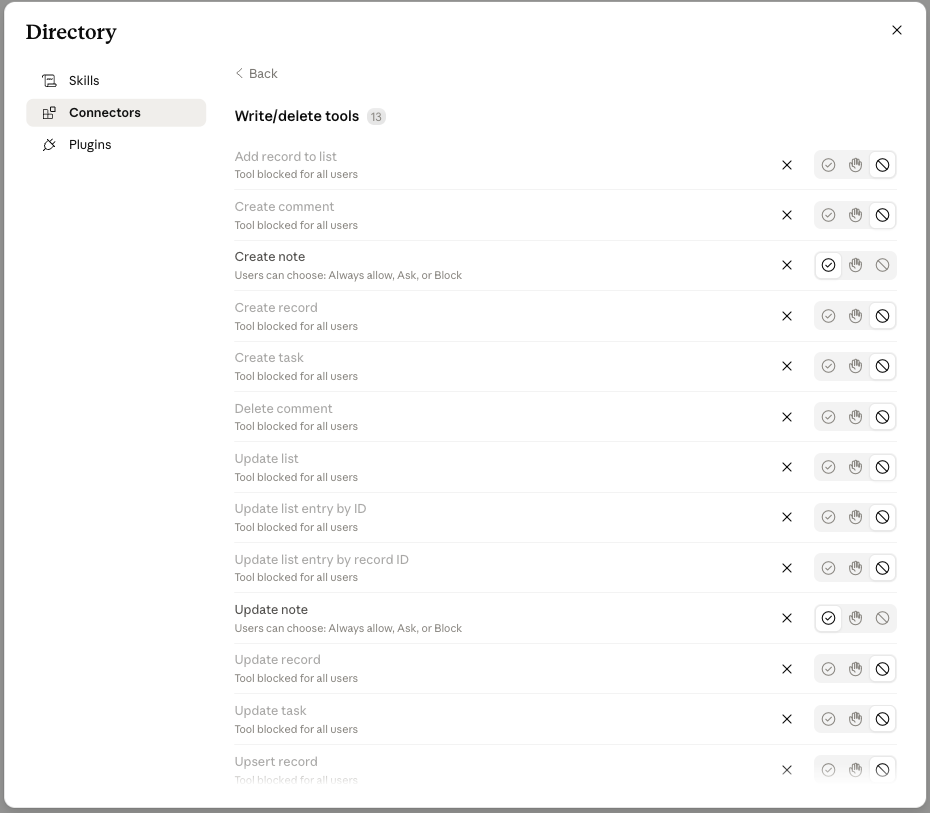
Not your email, not your calendar, nothing else. Claude only ever sees what your own account can see. Once these are set, your closeout just saves when you say “save it” — you won’t repeat any of this.
Get to know your workspace
Now that your accounts are ready, here’s how Claude is organized — and the last two bits of setup. Once this clicks, your closeout is easy: it all happens in one place.
A chat
One conversation
A chat is one conversation with Claude — like separate text threads for different topics. Every chat is saved in the menu on the left, so you can scroll back to an old one any time.
You’ll start a new chat for each evening’s closeout. One closeout, one chat. Don’t reuse yesterday’s.
Your project
Home base
Your project, Team Workspace [Live], is home base — it already knows your check-in questions. Think of it as the folder that holds your closeout.
Your closeout has to happen inside this project. A chat you start from inside it follows the check-in questions. A plain chat outside it doesn’t, so it won’t run your closeout.
1. Star your project so it’s easy to find
You only do this once, and it’s the project you’ll lean on every evening. Open Projects from the left menu and find Team Workspace [Live]. (If you don’t see it right away, check the Shared with you or Team tab.)
Now star it, so it’s quick to get back to: click the three dots (the ⋮ in the corner of the project) and choose Star. Starred projects stay at the top, so you’ll find yours fast every evening.
Don’t start without it. Post in the WhatsApp group and we’ll get you sorted.
Always open the project first, then start your closeout from inside it. Don’t tap the New chat button (the + at the very top of the menu) — that opens a plain chat outside your project, and the closeout won’t work there.
![Team Workspace [Live] open, with a fresh chat being started from inside the project](images/07-new-chat-in-project.png)
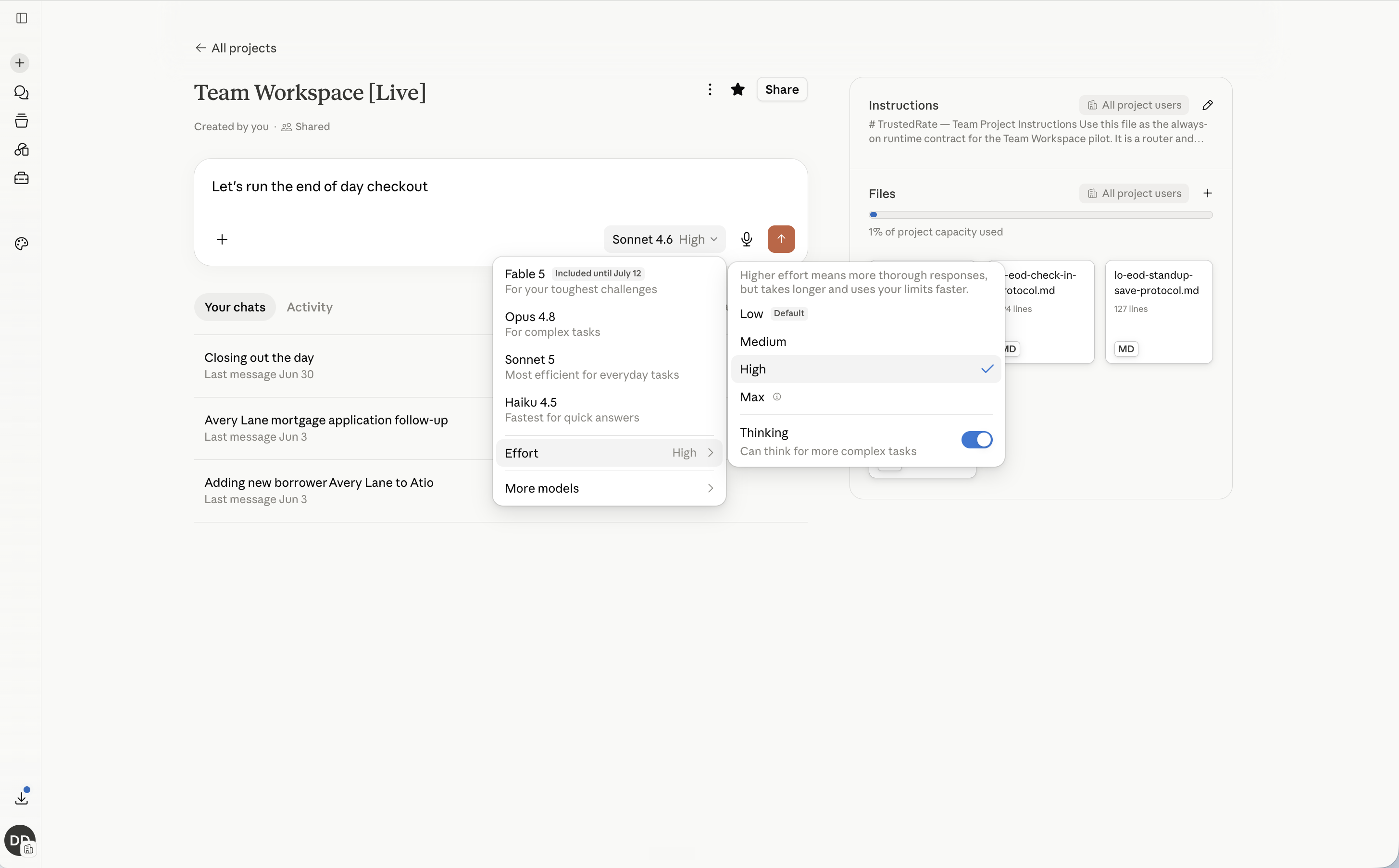
2. Set the model to Sonnet 5, effort High
A “model” is just which version of Claude is answering you, and “effort” is how hard it thinks. You want a specific pair, and it takes two clicks.
Look at the bottom-right of the message box. It shows what you’re on now, something like Sonnet 5 · High. Click it.
- Make sure Sonnet 5 has a checkmark. (If it doesn’t, find it under More models.)
- Make sure Effort says High. (Click Effort to change it.)
Why bother: on the wrong model, or low effort, Claude can rush, skip a question, or get a detail wrong in your write-up. Sonnet 5 on High keeps it careful.
Glance at the bottom-right each evening — it should say Sonnet 5, High — and fix it if it changed.
Your setup checklist
That’s everything, in one place — tick each off as you go.
From here on it’s the same five-minute routine each evening — and your 6pm reminder is what kicks it off. That’s next.
Your end-of-day closeout
This is the part you’ll do every evening. Claude asks, you answer, you check it, you approve. About five minutes.
Your 6pm reminder is the cue
You don’t have to remember on your own. At 6pm your Google Calendar reminder buzzes — that’s your signal to do the closeout. There are two ways in:
Tap the link in the reminder
The 6pm calendar reminder has a link to your project. Tap it and it drops you straight into Team Workspace [Live], ready to start.
Or open Claude yourself
Go to claude.ai (or the app) and open your Team Workspace [Live] project from the left menu.
You’ll get a recurring 6pm calendar invite — accept it, and turn on calendar notifications on your phone so the reminder reaches you. Without that, the reminder is set but your phone stays quiet, and it’s easy to forget.
Most evenings you’ll still be logged in. If Claude asks, it’s the same Continue with email with the same address as before. It helps to bookmark claude.ai, or grab the app — on your phone, search “Claude by Anthropic” in the App Store or Google Play; on a computer, there’s a Download desktop app button on the login screen. Everything in this guide works the same in all of them.
Start it
Once you’re in your project, start a brand-new chat from inside it. One closeout, one chat. Don’t reuse yesterday’s. Remember: don’t use the New chat button (the + at the top of the menu) — that opens a chat outside your project.
Before you answer anything, glance at the bottom-right of the message box. It should say Sonnet 5, High. If it switched, change it back.
Then tell Claude you’re wrapping up. Say it however feels natural:
Let’s close out the day.
Other ways to start it: “I’m wrapped,” or “Log me for today.” Claude takes it from there.
Answer the questions
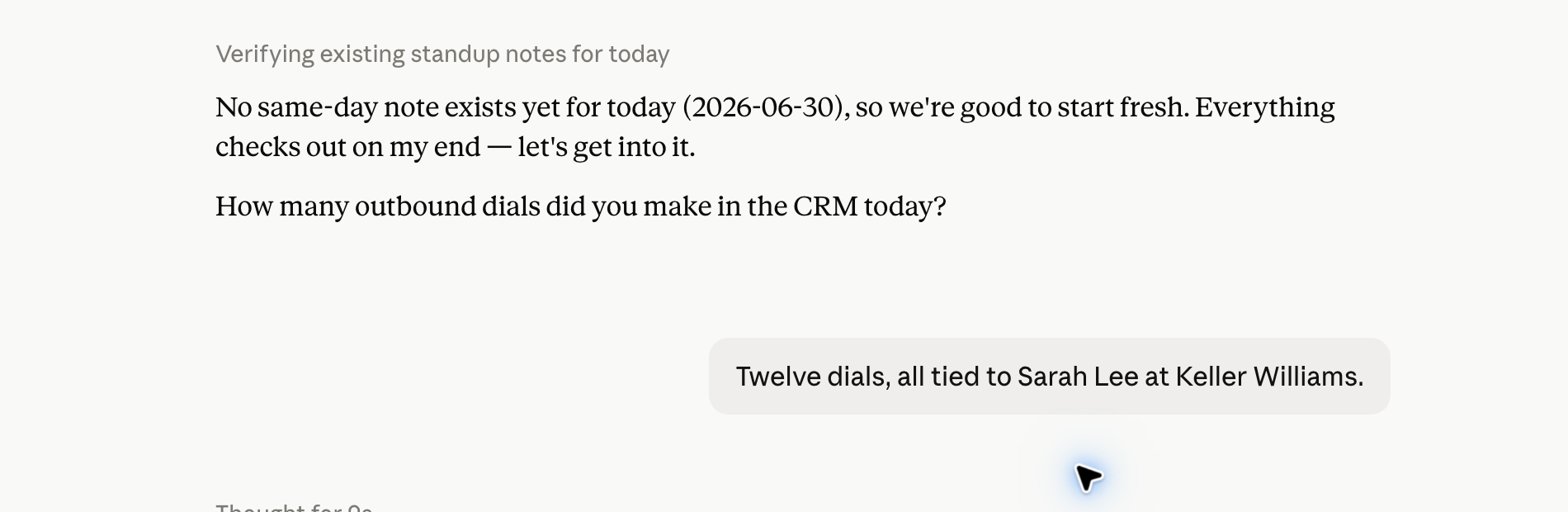
Claude asks the check-in questions one at a time. Just answer like you’re talking to a teammate.
- Short answers are fine. “Twelve dials, all tied to Sarah at Keller.”
- If nothing happened for a question, say “none” or “N/A.” That’s a real answer.
- Got something wrong? Just tell it: “Actually, change that to twelve.” It fixes it.
- Not sure what a question means? Ask Claude to say it a different way.
There’s no rush. Take your time. Claude waits for you.
Short and honest beats long. “Twelve dials, all tied to Sarah at Keller. Two apps out, quiet on closings.” That’s a great answer — a few plain lines, no polish needed.
Review and approve
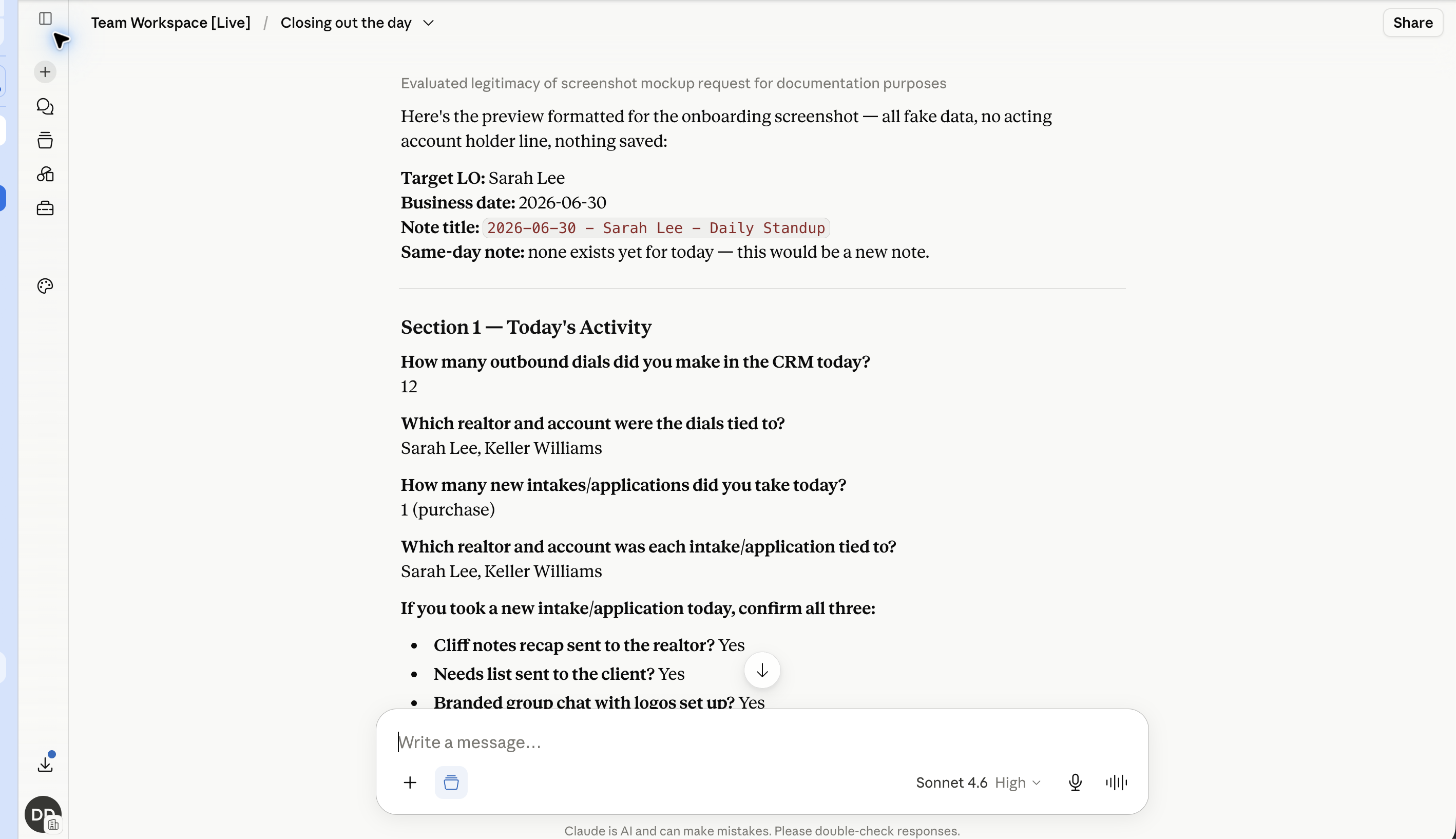
When you’ve answered everything, Claude shows you the full write-up before it saves. Read it over.
- Check the answers are right.
- Fix anything by telling Claude what to change. It shows you the updated version again, so you can see your fix before saving.
- When it looks good, say “save it.”
Saying “save it” is the only thing that saves it. Until then, nothing is written down.
If a save ever fails, Claude gives you a clean copy. Send it to Winston and he’ll take care of it, so your day is never lost.
You’re done
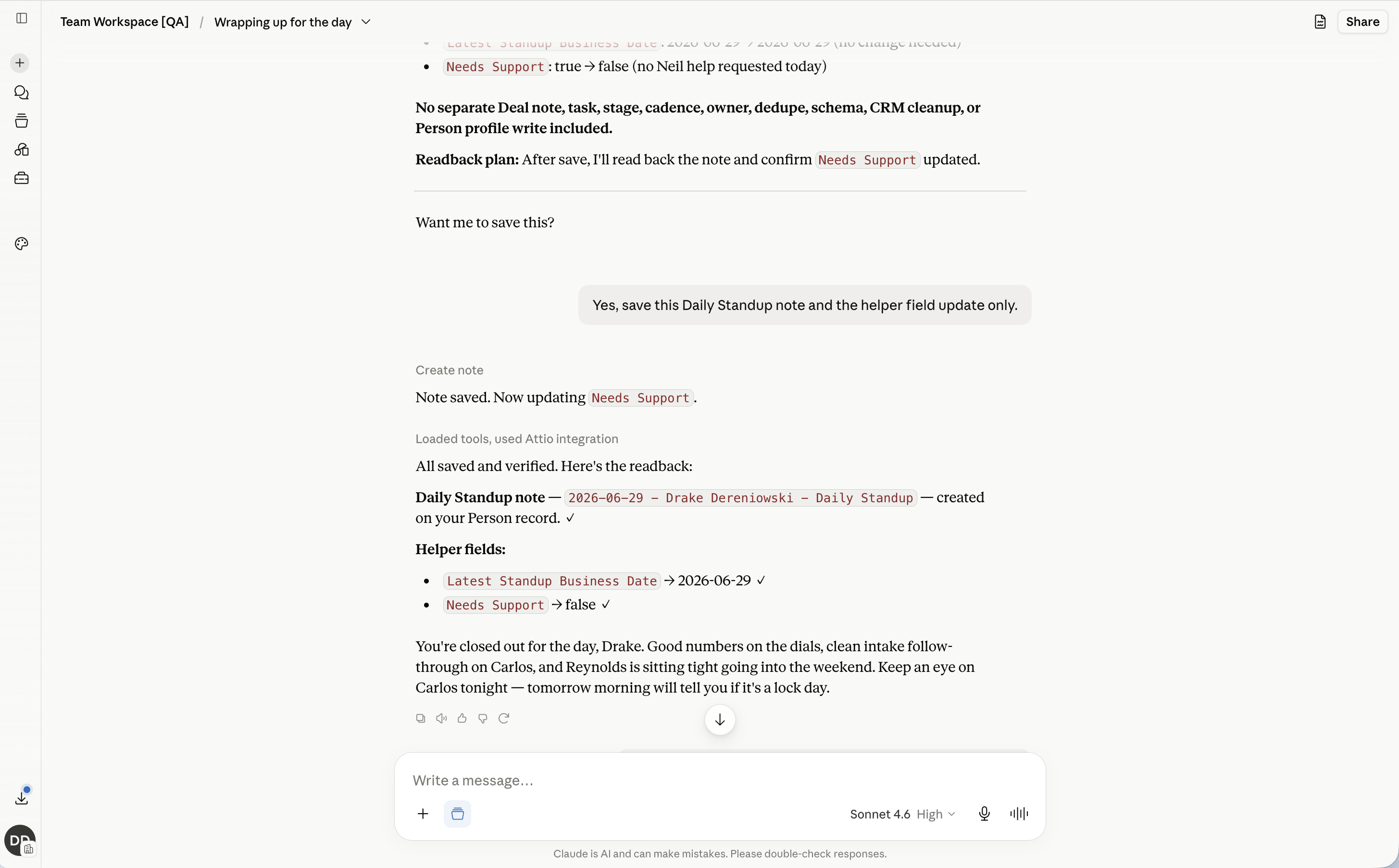
After you approve, Claude saves your check-in and confirms it’s done. That’s it for the day. Neil, Joey, and Winston can see it on their end, and you don’t need to do anything else.
Need to add something later the same day? Open the project again and tell Claude what to add. It updates today’s check-in instead of starting a new one.
Good to know
Talking instead of typing
You don’t have to type if you’d rather talk. At the bottom-right of the message box there are two icons side by side. The first one, the microphone, is the one you want: tap it, say your answer, and Claude turns your speech into text.
The second icon, the one that looks like sound waves, is voice mode. Don’t use that one for your closeout. It’s a hands-free chat feature that can’t save your check-in. Stick with the microphone.

Don’t connect anything else
Attio is the one connection your closeout needs, and you set it up once (see “Getting set up” above). Beyond that, Claude never needs your email, your calendar, or any other account. If you ever see a prompt to connect Gmail, your email, or another app, skip it.
Usage limits
Claude has limits on how much you can use it within a few hours and across a week. On the company account you have plenty of room, and a five-minute closeout barely uses any of it.
If you ever see a message that you’ve hit a limit, nothing is broken. It resets on its own. Your answers are still in the chat, so you can come back and finish. You’d only run into this if you’re using Claude a lot for other things during the day.
If something goes wrong
Two moves, in order. First, ask Claude — tell it what happened and it can usually explain it or fix it on the spot. If something’s genuinely broken, then share the chat to the WhatsApp group and we’ll help.
For anything else, we have a WhatsApp group for the pilot.
Drake and Winston are both in it. Post in the group instead of messaging someone privately, so whoever’s around can pick it up.
We aim to reply within 24 hours.
Winston’s on California time, so he’s often around during your evening.
Say what you were doing and what happened.
And share the chat so we can see it — here’s how.
Reporting a problem, or leaving feedback? Share the chat
Whether something went wrong or you just have a suggestion to make this better, the fastest way to help us is to show us your actual chat. Send it one of two ways.
Best: share a link to the chat
Open the chat, find the Share button at the top right, set it to Shared, then Copy link. That gives you a link to the whole conversation — paste it into the WhatsApp group.
Or: send a screenshot
If you can’t find the Share button, take a screenshot of the part that went wrong and send that instead. Catch the whole message if you can, so we see the full picture.
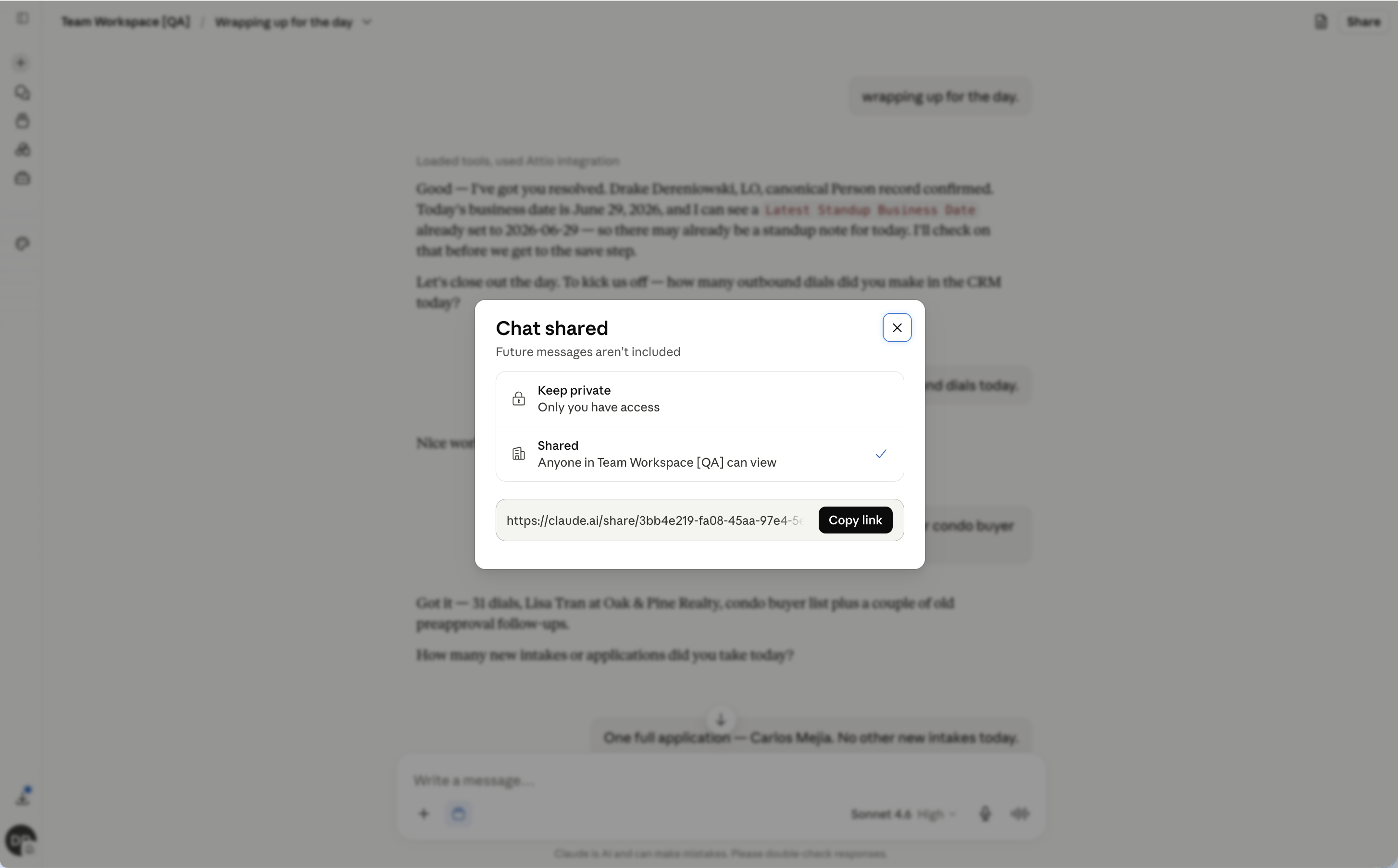
Either way, add a line about what you were doing when it happened. We aim to reply within 24 hours.
“Hey, tried to save my closeout just now and it kept failing. Here’s the chat: [link]. I’d answered everything and said save it, but it wouldn’t go through. What should I try?”
Common snags, and quick fixes
Tap a question to see what to do.
I can’t log in
Make sure you’re using the exact email your invite came to. If it still won’t work, post in the WhatsApp group.
I don’t see the project
Don’t start without it. Post in the WhatsApp group and we’ll get it shared to you.
The save didn’t go through
Ask Claude for a copy of your check-in, then send it to Winston. He’ll take care of it, so your answers aren’t lost.
Claude isn’t asking my check-in questions
You’re probably in a chat outside the project. Open Team Workspace [Live] and start your closeout from inside it, not from the New chat button at the top.
And you won’t lose your day. Worst case, Claude gives you a copy of your check-in to send to Winston, and he’ll log it for you.
FAQ
Tap a question to see the answer.
Is this watching or grading me?
No. It’s a record of your day so leadership stops chasing you for updates. It’s the same questions you’d cover at standup.
Does Claude already know my numbers?
No. It only knows what you tell it in the chat.
Which model should I use?
Sonnet 5, with Effort set to High. You’ll see it at the bottom-right of the message box — check it before you start.
Do I have to pay anything?
No. You’re on the company account.
It asked about a personal Claude account I already have
If you’ve used Claude before on the same email, it may ask what to do with that account. Choose Keep both to be safe. If you ever end up in the wrong one, switch using your initials at the bottom-left. Not sure? Ask in the WhatsApp group.
What if I forget at 6pm?
Do it as soon as you remember. If you’re logging a day late, tell Claude which day it’s for.
What if I had a quiet day with no activity?
Still check in. Answer “none” or “N/A” where nothing happened. A quiet day is worth recording too.
Can I do this on my phone?
Yes. The app or claude.ai in your phone browser both work the same way.
Can I talk instead of type?
Yes. Use the microphone button in the chat. Just don’t use voice mode, it can’t save your check-in.
Who sees my check-in?
Neil, Joey, and Winston can see it on their end. It’s a record for leadership.
What can Claude actually change in Attio?
Less than you’d think. It can read your records to help, and it can save your check-in note — and it still shows you the note and waits for your OK first. It can’t create or change records, it can’t delete anything, and it can’t touch your lists. TrustedRate sets these limits for everyone.
Should I connect my email or other apps?
Just one: Attio, the team’s records system, which you connect once during setup so your closeout can save. Nothing else — Claude doesn’t need your email, calendar, or any other account. If you’re asked to connect one of those, skip it.
I typed the wrong number. Can I fix it?
Yes. Tell Claude what to change before you approve. After saving, you can open the project again and have it update today’s check-in.
Can I change my check-in after I save it?
Yes, the same day. Open the project and tell Claude what to add or fix, and it updates today’s check-in instead of starting a new one.
How do I know it actually saved?
Claude confirms after you approve. If you’re not sure, ask it: “Did that save?”
What if Claude says something wrong?
Tell it what’s off and it’ll correct it. Nothing saves until you approve, so a wrong answer never gets recorded by accident.
Do I start a new chat every day?
Yes. A fresh chat each evening, inside the project.